How to bulk sign PDFs in Pro Desktop
Pro Desktop can apply a saved signature to multiple PDFs and save the results as individual files or a ZIP. Local field and text detection supports the batch workflow; optional cloud AI placement is available with your own provider key.
Last verified: September 9, 2026
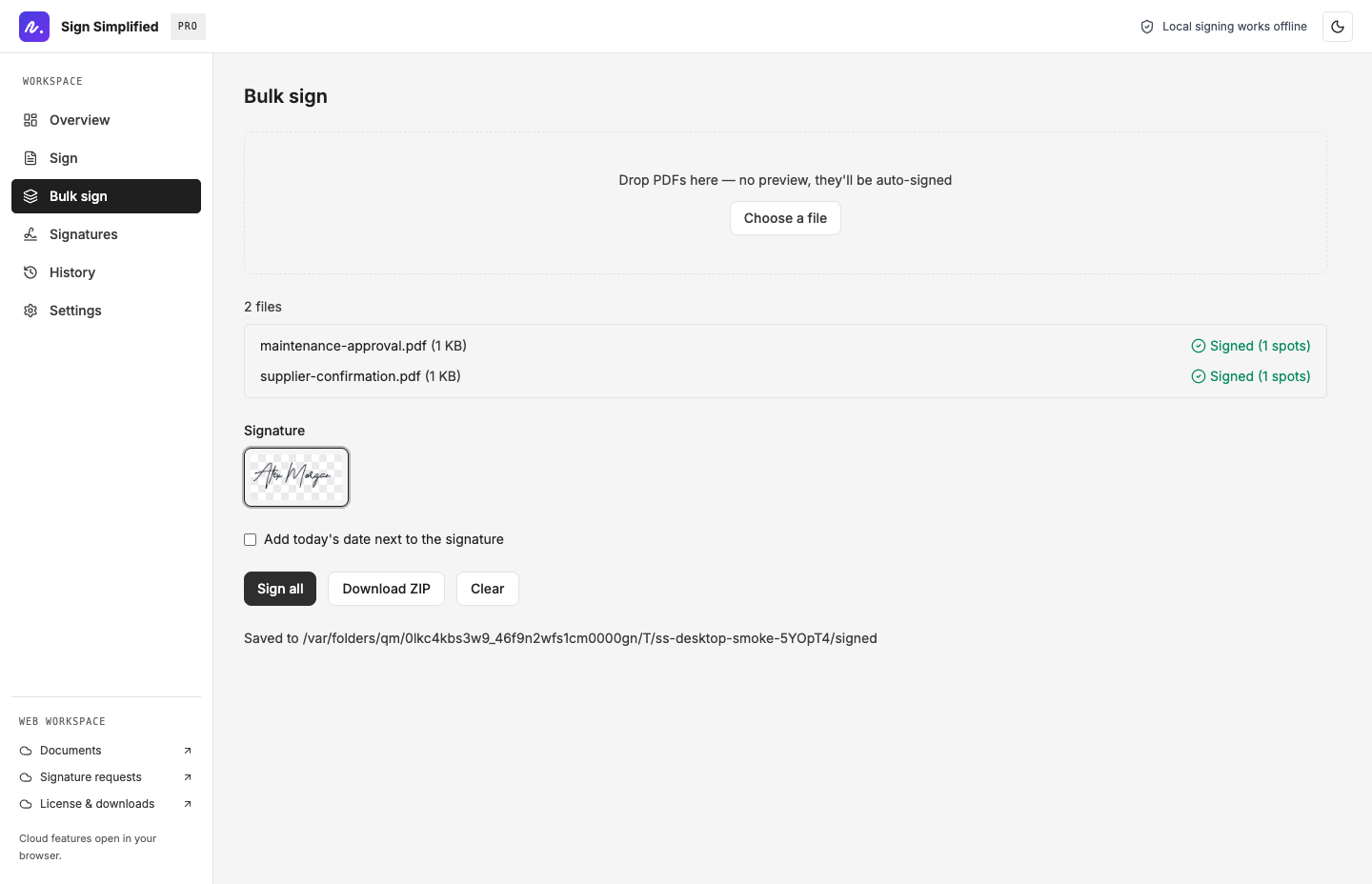
Workflow
- 01
Choose a saved signature
Create a reusable signature in the local library, then open Bulk sign and select it.
- 02
Add PDFs and process
Choose the PDFs, confirm the batch and run Sign all. Review the reported results.
- 03
Inspect and export
Open the outputs to check placement. Save the files or use Download ZIP for the completed batch.
Prepare the batch before you sign
Use a batch of documents you are authorized to sign yourself. Check document versions, recipient names and the wording around each signature area before processing. A pile of similar-looking files can still contain different terms.
Create and save the signature first. Use descriptive source filenames so you can identify the output without reopening every file. Each input PDF can be up to 200 MB; large scans also consume memory, so start with a smaller batch on an unfamiliar computer.
Understand placement
Local detection uses document fields and text where available. Scanned pages and unusual layouts can be harder to interpret. Automatic placement is assistance, so inspect the output rather than assuming a successful file write means the signature is correctly located.
Optional OpenAI or Anthropic assistance sends page images to the chosen provider and may incur charges. It needs internet and your API key. Decide whether that is appropriate for the documents before enabling it.
Check the files that will leave your office
Review results for missing signatures, overlap and wrong-page placement. If a layout needs attention, open that document in the editor and place the signature manually. Keep the original and final copies in distinct folders.
Use the ZIP export when you need to move a completed batch together. A ZIP bundles files; it does not send them, request another person’s signature or create a web audit trail.
Frequently asked questions
- Does bulk signing require an AI key?
- The local field and text detection workflow does not. Optional cloud AI placement needs your own OpenAI or Anthropic API key.
- Does a batch collect signatures from other people?
- No. It applies the selected signature to your files. Use the separate web request-to-sign workflow to invite recipients.
- Can I export a ZIP?
- Yes. Completed outputs can be bundled into a ZIP and saved through the app’s native save dialog.
Practical guides for Pro Desktop
- How to sign a PDF offline with Pro Desktop
- PDF signing workflows for property managers
- Pro Desktop vs web Pro: which signing workspace fits?